 moute.
Get Moute
moute.
Get Moute
A LITTLE TOUCH FOR THE BIG SCREEN
Control with Moute,
in your hands.
Moute turns your phone into a wireless mouse, touchpad and TV remote.
Control it your way, right where you are.

01 / A NATURAL FEEL
Familiar gestures.
A whole new surface.
At your desk, on the sofa or mid-presentation.
Just touch your phone to reach your computer.
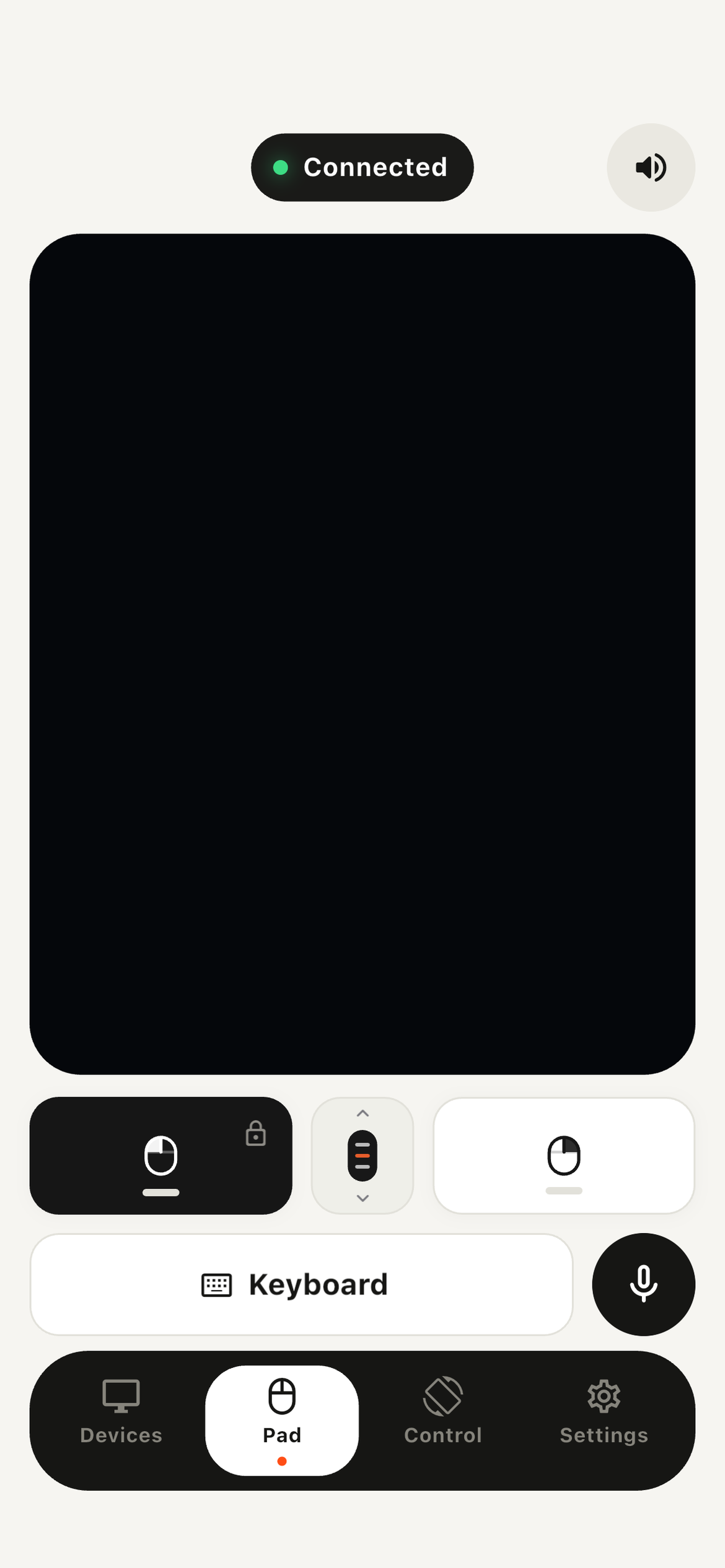
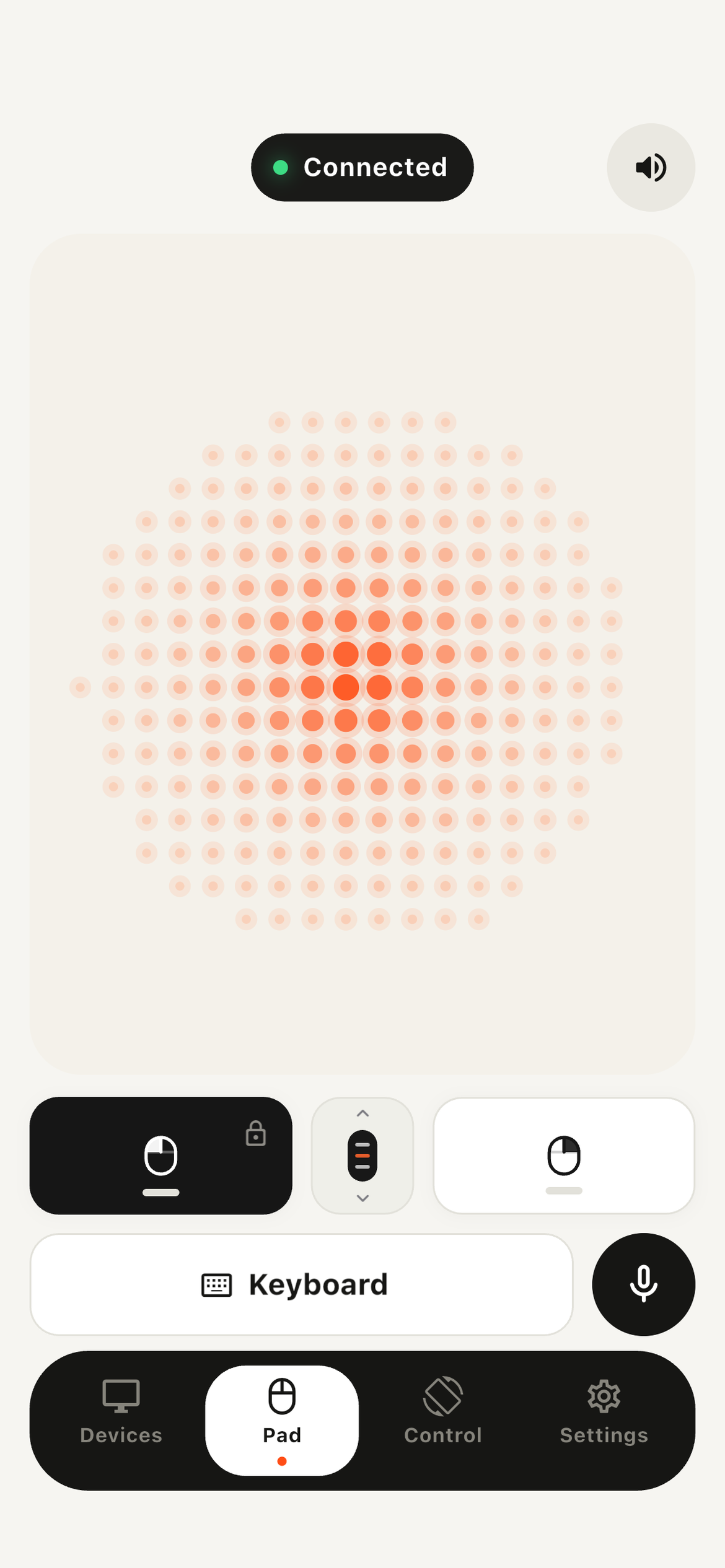
AS NATURAL AS A SWIPE
Tap. Swipe.
Find your flow.
Move the cursor with one finger and scroll with two. Left and right click, dragging, keyboard and volume control, all in one place.
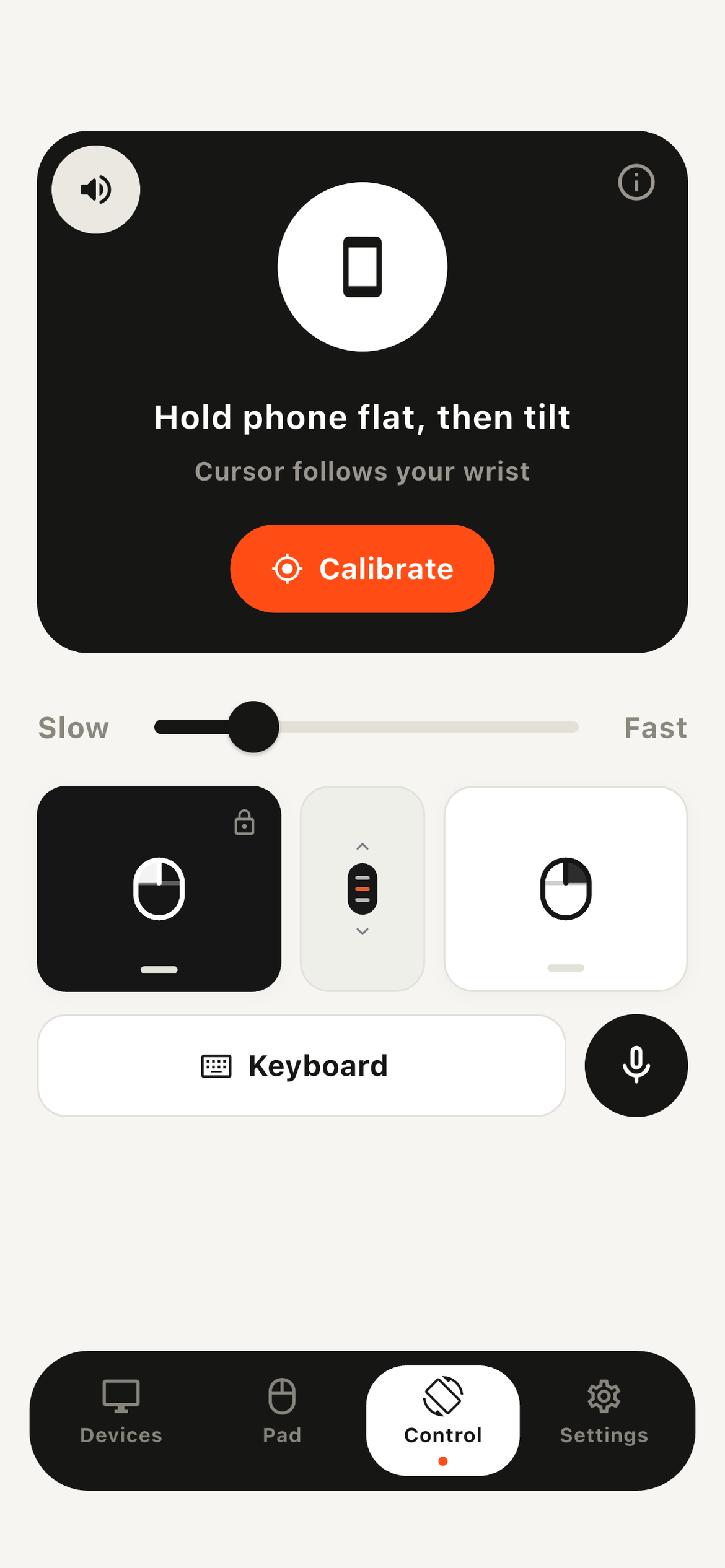
FROM MOTION TO CURSOR
Control, with a turn of your wrist.
02 / CONTROL FROM THE SOFA
Stop looking
for the remote.
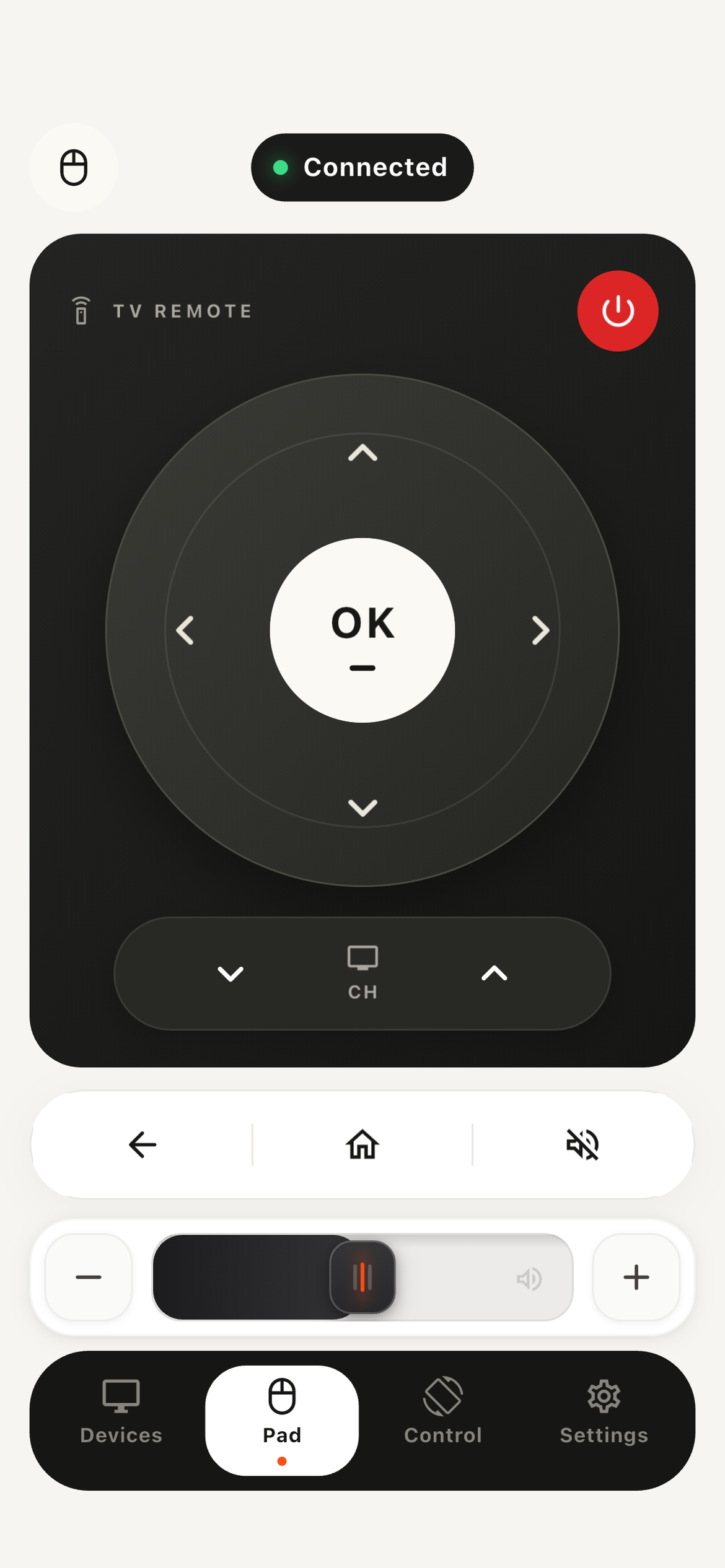
Your phone is already with you. Connect to your TV and turn Pad into a remote with one tap.
Available controls may vary by TV model and connection method.
03 / YOUR FIRST CONNECTION
Let them connect.
Stay in control.
Three small steps to connect your computer.
No account needed.
- 01
Install Moute on both devices.
Open the phone app and the Windows or macOS helper.
- 02
Join the same Wi-Fi.
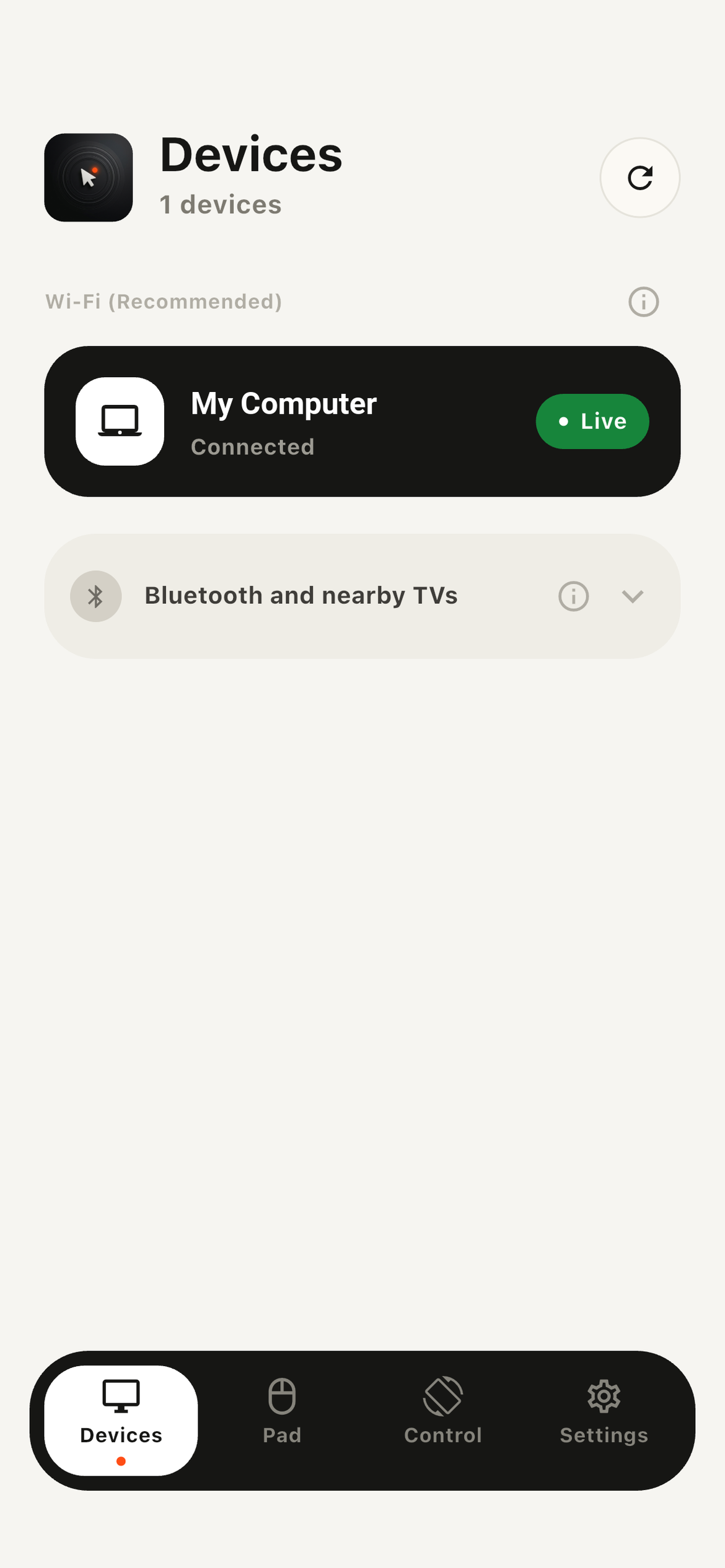
Find your computer on the Devices screen and connect.
- 03
Compare the code and approve.
If the codes match, approve on your computer. You’re ready.
 Connection requestYour phone wants to pair
Allow the connection if the codes match.
THE NEXT TOUCH IS YOURS.
Give your screen
a little freedom.
An app for your phone.
A small helper for your computer.
GOOD TO KNOW.
Small questions.
Clear answers.
What do I install on my computer?+
Install and open the Moute helper for Windows or macOS. Your phone and computer need to be on the same local network.
Does this mirror my phone’s screen?+
Moute does not mirror your screen. It sends your touches, typing and movement to the connected device as control commands.
Which devices support the TV remote?+
The app includes Samsung, LG and Android TV connections. Pairing methods and features such as pointer control and volume feedback vary by TV model.
Do I need an account?+
No. Connect over the same local network and approve pairing on your computer.